Automatically find textures
Match local Base Color, Normal, Roughness, and other material images by filename when opening a model in Tridi.
Applies to Tridi 1.6.0 release. Release notes
Auto find texture searches for conventionally named image files when a model opens, then applies the best matches to its materials for the current Tridi session. It supports both individual material maps and common packed PBR layouts.
Enable automatic matching
- Open Preferences > Import > Global.
- Enable Materials and Textures.
- Expand Auto find texture and enable its checkbox.
- Optional: enable Use Geometry Names when mesh names identify texture sets more reliably than the imported material names.
- Open or reload the model. Preference changes do not alter a model that is already displayed.
Auto find texture is enabled by default. It scans the model's folder and its subfolders for PNG, JPEG, BMP, and TIFF files. The original model and image files are not modified.
Name texture files for matching
Each filename stem must contain the material name and a recognized map tag. Matching is case-insensitive, and punctuation such as spaces, underscores, and hyphens separates words. For a material named Wood, example stems include wood_basecolor, wood_normal, and wood_roughness.
Tridi matches the complete material identity before interpreting map tags. For example, the word metal inside a material named Metal Chair is not treated as a Metallic tag. A Blender-style numeric suffix such as Wood.001 is matched using Wood.
Use Geometry Names also considers the names of meshes that use each material. This opt-in mode is useful for FBX and similar files whose imported material names are generic, but it can select an unintended set when mesh names are ambiguous. Keep it off unless material-name matching misses the expected textures.
Default filename tags
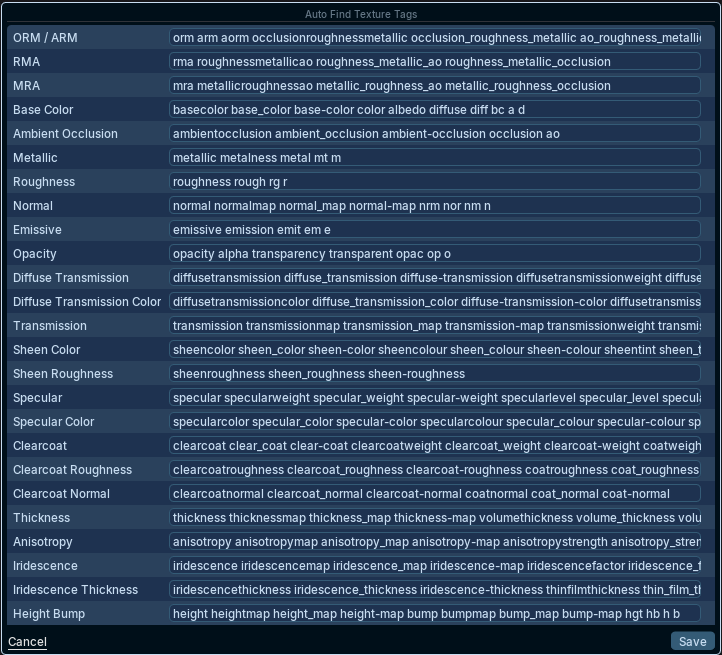
The fields in Preferences > Import > Auto find texture are editable. Separate tags with spaces; changes apply on the next load or reload.
Packed PBR maps
Packed-map aliases are checked before individual map aliases. The channel layout is explicit, so the same image can provide Ambient Occlusion, Roughness, and Metallic without guessing from pixel content.
| Packed layout | Default tags | Channels | Example for material Wood |
|---|---|---|---|
| ORM / ARM | orm, arm, aorm, occlusionroughnessmetallic, occlusion_roughness_metallic, ao_roughness_metallic | R = AO, G = Roughness, B = Metallic | wood_orm |
| RMA | rma, roughnessmetallicao, roughness_metallic_ao, roughness_metallic_occlusion | R = Roughness, G = Metallic, B = AO | wood_rma |
| MRA | mra, metallicroughnessao, metallic_roughness_ao, metallic_roughness_occlusion | R = Metallic, G = Roughness, B = AO | wood_mra |
Individual material maps
| Material map | Default tags | Example for material Wood |
|---|---|---|
| Base Color | basecolor, base_color, base-color, color, albedo, diffuse, diff, bc, a, d | wood_basecolor |
| Ambient Occlusion | ambientocclusion, ambient_occlusion, ambient-occlusion, occlusion, ao | wood_ao |
| Metallic | metallic, metalness, metal, mt, m | wood_metallic |
| Roughness | roughness, rough, rg, r | wood_roughness |
| Normal | normal, normalmap, normal_map, normal-map, nrm, nor, nm, n | wood_normal |
| Emissive | emissive, emission, emit, em, e | wood_emissive |
| Opacity | opacity, alpha, transparency, transparent, opac, op, o | wood_opacity |
| Diffuse Transmission | diffusetransmission, diffuse_transmission, diffuse-transmission, diffusetransmissionweight, diffuse_transmission_weight, diffuse-transmission-weight, dt | wood_diffuse_transmission |
| Diffuse Transmission Color | diffusetransmissioncolor, diffuse_transmission_color, diffuse-transmission-color, diffusetransmissioncolour, diffuse_transmission_colour, diffuse-transmission-colour | wood_diffuse_transmission_color |
| Transmission | transmission, transmissionmap, transmission_map, transmission-map, transmissionweight, transmission_weight, transmission-weight, tr | wood_transmission |
| Sheen Color | sheencolor, sheen_color, sheen-color, sheencolour, sheen_colour, sheen-colour, sheentint, sheen_tint, sheen-tint, sh | wood_sheen_color |
| Sheen Roughness | sheenroughness, sheen_roughness, sheen-roughness | wood_sheen_roughness |
| Specular | specular, specularweight, specular_weight, specular-weight, specularlevel, specular_level, specular-level, speculariorlevel, specular_ior_level, specular-ior-level, sp | wood_specular |
| Specular Color | specularcolor, specular_color, specular-color, specularcolour, specular_colour, specular-colour, speculartint, specular_tint, specular-tint | wood_specular_color |
| Clearcoat | clearcoat, clear_coat, clear-coat, clearcoatweight, clearcoat_weight, clearcoat-weight, coatweight, coat_weight, coat-weight, cc | wood_clearcoat |
| Clearcoat Roughness | clearcoatroughness, clearcoat_roughness, clearcoat-roughness, coatroughness, coat_roughness, coat-roughness | wood_clearcoat_roughness |
| Clearcoat Normal | clearcoatnormal, clearcoat_normal, clearcoat-normal, coatnormal, coat_normal, coat-normal | wood_clearcoat_normal |
| Thickness | thickness, thicknessmap, thickness_map, thickness-map, volumethickness, volume_thickness, volume-thickness, th | wood_thickness |
| Anisotropy | anisotropy, anisotropymap, anisotropy_map, anisotropy-map, anisotropystrength, anisotropy_strength, anisotropy-strength, anisotropylevel, anisotropy_level, anisotropy-level, an | wood_anisotropy |
| Iridescence | iridescence, iridescencemap, iridescence_map, iridescence-map, iridescencefactor, iridescence_factor, iridescence-factor, thinfilm, thin_film, thin-film, ir | wood_iridescence |
| Iridescence Thickness | iridescencethickness, iridescence_thickness, iridescence-thickness, thinfilmthickness, thin_film_thickness, thin-film-thickness | wood_iridescence_thickness |
| Height Bump | height, heightmap, height_map, height-map, bump, bumpmap, bump_map, bump-map, hgt, hb, h, b | wood_height |
How Tridi chooses a match
- A filename that starts with the material or enabled geometry name ranks above a match later in the filename, and unrelated extra words reduce the match priority.
- Packed ORM/RMA/MRA aliases are evaluated before individual map aliases. A separate explicit individual map overrides only its corresponding channel from the packed image.
- More specific advanced tags such as
specular_color,clearcoat_roughness, andiridescence_thicknessoutrank their shorter parent terms. - For otherwise equal names, lossless PNG and TIFF candidates rank above BMP and JPEG.
- Tridi samples likely color, scalar, vector, and normal maps to favor plausible image content when filenames are equally suitable.
- A Normal-tagged image that is at least 98% grayscale in the sample can fall back to Height Bump when no explicit height or bump candidate already owns that slot. A colored tangent-space normal remains Normal, so both maps can be used together.
- Clearcoat Normal is evaluated independently from the primary Normal map and is never reclassified as Height Bump.
- An Opacity match is combined with a matching Base Color image. If no Base Color match exists, Opacity is assigned independently.
Understand the limits
Automatic matching uses filenames and sampled image content; it does not read a separate naming manifest. A selected match can replace the material map shown in Tridi for that load, including an existing imported map. Disable Auto find texture and reload if the source material should remain authoritative.
Height Bump affects surface shading and does not displace geometry. Opacity may change the effective alpha rendering mode according to the matched image. Use the Material panel and render passes to verify the result.