
Play an animation
Choose an imported animation clip, play or pause it, scrub the timeline, change speed, and toggle looping.
Applies to Tridi 1.6.0 release. Release notes
The playback bar appears when the active model contains at least one supported animation clip.
Play a clip
- Open an animated model.
- Select Animations in the playback bar to choose a clip when more than one is available.
- Select Play, or press Space.
- Use the timeline, frame field, Playback speed, or Loop controls as needed.
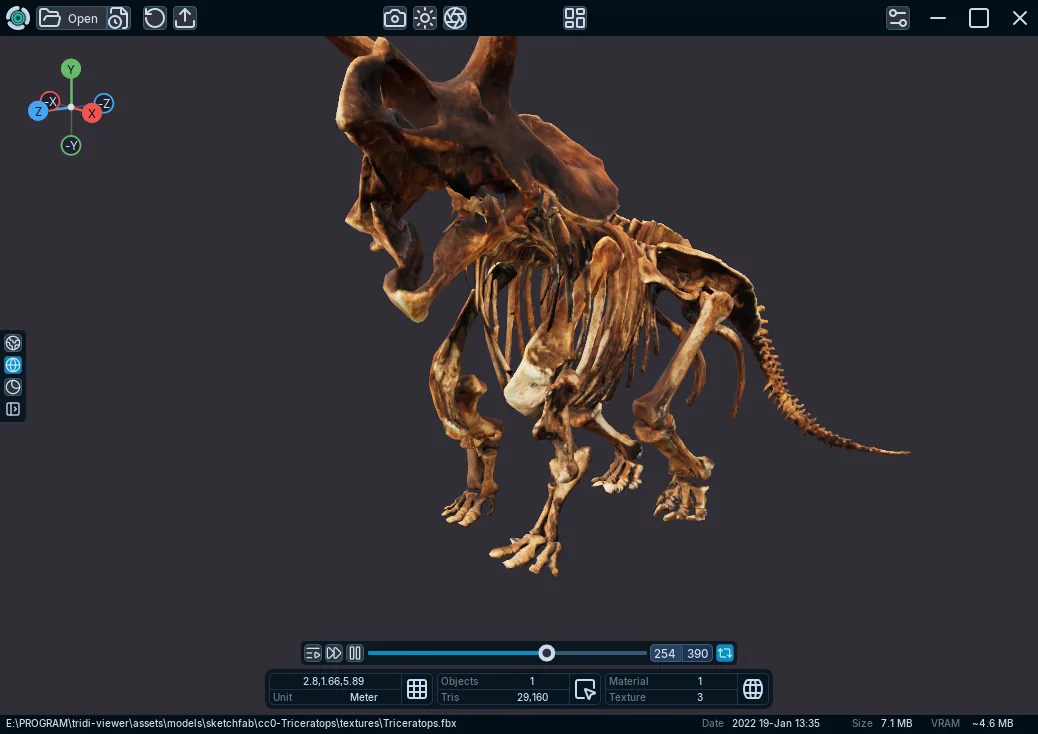
If the playback bar is missing
Confirm Preferences > Import > Global > Animations is enabled, then reopen the file. The source must also use an animation type supported by its importer.